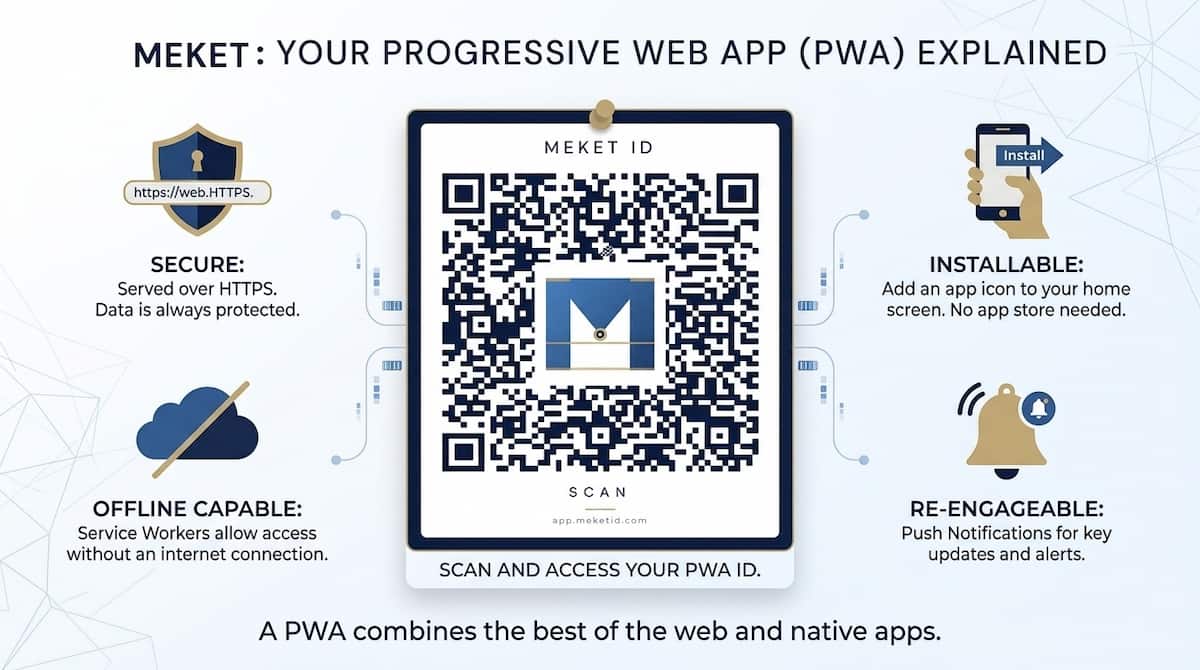
You search for MEKET on the App Store or Google Play and don't find it. That's not a mistake. MEKET isn't in any app store, and there's a specific reason for that.
What is a PWA and why is MEKET one
A PWA —progressive web app— is an app that lives on the internet but can be installed on your device just like a regular app. You open it from your home screen, it takes up very little space, and you don't need to open a browser every time.
The difference from a store app is that there are no intermediaries: neither Apple nor Google approve what you publish or when. For MEKET that matters because your medical data and emergency contacts are yours, and we need to be able to update the app when needed without waiting weeks for a store to give the green light.
The practical result for you is the same: an app on your home screen that opens on its own, with an icon and everything.
How to install MEKET on Android (Chrome)
This is the easiest. When you visit app.meketid.com with Chrome on Android, the browser itself offers to install it:
- A prompt appears at the bottom of the screen: "Add MEKET to home screen".
- Tap Install.
- Done. The MEKET icon appears on your home screen like any other app.
If the prompt doesn't appear automatically, tap the Chrome menu (the three dots, top right) and look for "Add to home screen" or "Install app".
How to install MEKET on iPhone (Safari or Chrome)
First, if you found the app through Google, copy the address and open it in Safari or Chrome. On iPhone the process is manual, because the browser doesn't launch the install prompt automatically. It requires one extra step, but takes the same amount of time:
- Open app.meketid.com in Safari or Chrome.
- Tap the Share button — it's the rectangle with an arrow pointing upward, in the browser's bottom bar.
- In the menu that opens, scroll down and tap "Add to Home Screen".
- Confirm the name (it shows "MEKET") and tap Add.
The icon appears on your home screen. From then on it opens like a normal app, without browser bars.
How to install MEKET on desktop (Chrome or Edge)
In the browser, look at the address bar: when you visit app.meketid.com with Chrome or Edge, an icon with a screen and arrow appears in the top right corner of the bar.
- Click that icon.
- Confirm in the dialog that appears.
- MEKET opens as a standalone window, without browser tabs, and is accessible from your desktop or start menu.
Why it's worth installing
You can use MEKET directly from the browser without installing it. But if you install it:
- It's one tap away from your home screen, just like any other app.
- You receive alert notifications when someone scans your QR and shares their location —if you have MEKET+ or MEKET Family.
- It opens faster because part of the content is already saved on the device.
The QR works the same whether you install it or not: whoever finds you scans it with any phone, no app, no account needed. The installation is for you, not for the person helping you.
No stores. No Apple or Google approval. Your icon on the screen in under a minute.